# Import the voyager Root Certificate into your system

## Introduction

To ease the use of servers/services of this domain it is recommended to trust the root certificate of this domain. This text describes how-to import the root certificate and start trust the different serves/services

## Vivaldi

The Vivaldi browser is not so straight forward. You have to enter

[chrome://settings/certificates](chrome://settings/certificates)

Then it will display the certificate management; goto "Authorities":

[![image.png](https://hwiki.simmy.org/uploads/images/gallery/2024-10/scaled-1680-/qU7image.png)](https://hwiki.simmy.org/uploads/images/gallery/2024-10/qU7image.png)

"Import" all certificates you need.

<p class="callout info">Don't forget to trust them.</p>

## Brave

Goto to the settings menu of your browser. Usually on the right upper corner.

[![grafik.png](https://hwiki.simmy.org/uploads/images/gallery/2024-01/scaled-1680-/b2Egrafik.png)](https://hwiki.simmy.org/uploads/images/gallery/2024-01/b2Egrafik.png)
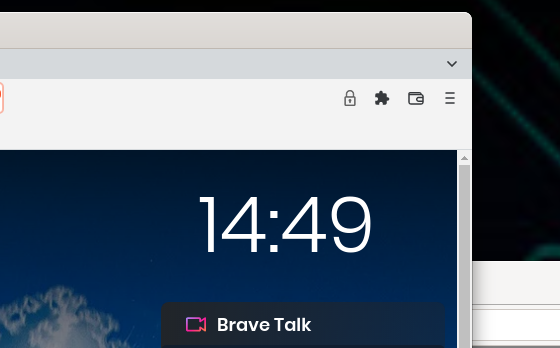
From the opening menu choose "Settings".

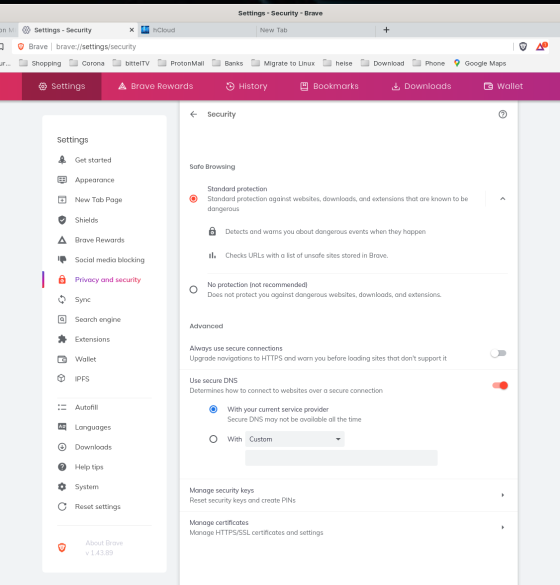
Search for "certificate" or go to Privacy and Security Settings and choose "Manage certificates".

[![grafik.png](https://hwiki.simmy.org/uploads/images/gallery/2024-01/scaled-1680-/jpXgrafik.png)](https://hwiki.simmy.org/uploads/images/gallery/2024-01/jpXgrafik.png)
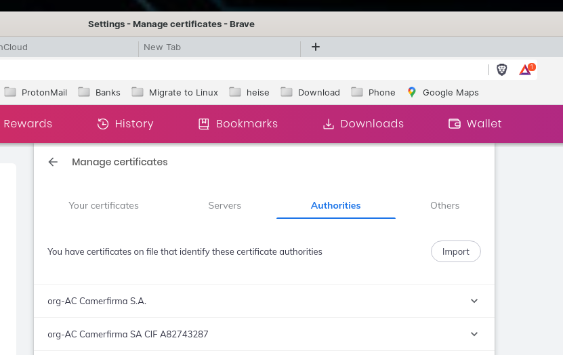
Goto "Authorities"

[![grafik.png](https://hwiki.simmy.org/uploads/images/gallery/2024-01/scaled-1680-/nKzgrafik.png)](https://hwiki.simmy.org/uploads/images/gallery/2024-01/nKzgrafik.png)
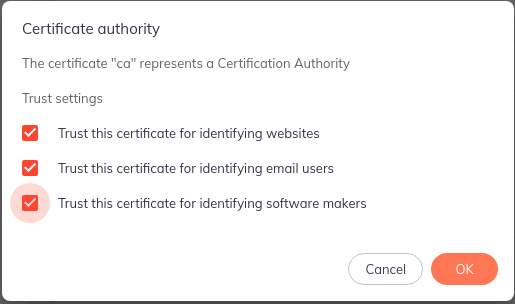
Select ca\_simmy.ch.crt

Make sure that under trust settings "Trust this certificate for identifying websites" is enabled. The other options are for future use.

[![grafik.png](https://hwiki.simmy.org/uploads/images/gallery/2024-01/scaled-1680-/pXcgrafik.png)](https://hwiki.simmy.org/uploads/images/gallery/2024-01/pXcgrafik.png)
<div class="wikimodel-emptyline" id="bkmrk--5">  
</div>## Windows

Import the certificate to your local certificate store.  
  
Dafür "Computerzertifikate verwalten" aufrufen. Beim Punkt "Vertrauenswürdige Stammzertifizierungsstellen" mit der rechten Maustaste klicken: Alle Aufgaben - Importieren

[![grafik.png](https://hwiki.simmy.org/uploads/images/gallery/2024-01/scaled-1680-/ZYegrafik.png)](https://hwiki.simmy.org/uploads/images/gallery/2024-01/ZYegrafik.png)

<div class="wikimodel-emptyline" id="bkmrk--7">  
</div><p class="callout warning">ACHTUNG: Nicht unter "Eigene Zertifikate" speichern, das Zertifikat funktioniert dort nicht!</p>

  
Danach einfach die Masken jeweils bestätigen. Hier nochmals der Pfad:

[![grafik.png](https://hwiki.simmy.org/uploads/images/gallery/2024-01/scaled-1680-/S4lgrafik.png)](https://hwiki.simmy.org/uploads/images/gallery/2024-01/S4lgrafik.png)
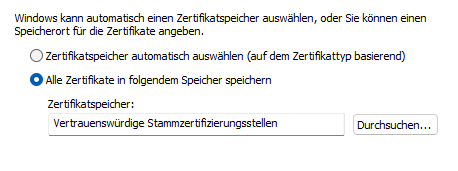
Schliesslich auf "Fertig stellen" und freuen, dass die Verbindung nun verschlüsselt ist.

# iOS

bei iphone kann ich dir sagen: pack dir das irgendwo per web erreichbar, am besten in deinem LAN, rufe dann die .crt-datei mit -safari- auf und sage dem browser dann, dass er das crt installieren darf. das ist bisher die zuverlässigste variante. alles andere via "apple dateien" oder seafile oder oder funktionieren nicht, da der trigger nicht initiiert wird

<span style="font-family: Calibri,serif; font-size: 12pt; line-height: 100%; page-break-after: auto; page-break-before: auto;">Patrick Beck, 23.10.2022</span>

## Download certificate

Upper left corner, ca\_simmy.crt.